

TL;DR: Whether you want to stream PS4 or PS5 gameplay directly to Twitch or YouTube, record clips using your console's built-in features, or customize your streams and recordings with Streamlabs Desktop, there are several ways to get started.
This guide covers your options, including the equipment and software you'll need.
Jump Ahead:
- How to stream and record PlayStation gameplay with a PC
- How to stream and record gameplay directly on PlayStation
Below, we'll walk you through the different ways to stream and record PlayStation gameplay, from native console features to more advanced setups using Streamlabs Desktop.
How to stream and record PlayStation gameplay with a PC
If you're looking for more control over your streams and recordings, including custom overlays, alerts, multiple audio sources, and multistreaming, you can use Streamlabs Desktop with your PlayStation.
There are two main approaches: connecting your PlayStation with a capture card or accessing your gameplay through PS Remote Play.
Streaming and recording PlayStation gameplay with a capture card
A capture card allows you to connect your PS4 or PS5 to a computer and bring your gameplay into Streamlabs Desktop. From there, you can customize your scenes with overlays, alerts, webcams, and other elements while streaming or recording.
Follow these simple steps to hook up your console, adjust your settings, and broadcast your gameplay with ease.
Equipment you need before starting
Before you begin, gather the following hardware:
- PlayStation console and TV or monitor: Standard PlayStation 4 and PlayStation 5 models work.
- Capture card: A USB or PCIe capture card. Read our guide on What is a Capture Card? (And the Best Ones for Streaming) if you need help choosing one.
- Cables: The HDMI cord that came with your XBOX and any cables that came with your capture card.
- Streaming computer: A Windows PC or Mac running Streamlabs Desktop.
Step 1: Connect your PlayStation and capture card
- Disable HDCP on your PlayStation: Turn on your PlayStation console and select Settings > System > HDMI. Uncheck or toggle off Enable HDCP. (If HDCP stays turned on, your capture card will display a black screen.)
- Only if you have a PCIe capture card: Turn off your computer, unplug the power cable, open your computer case, and install the capture card into an open PCIe slot on your motherboard. (If you are using an external USB capture card, skip to step 2.)
- Plug one end of an HDMI cable into the HDMI OUT port on the back of your XBOX console.
- Plug the other end of that HDMI cable into the HDMI IN port on your capture card (or PCIe card bracket on the back of your PC).
- Plug one end of a second HDMI cable into the HDMI OUT (Passthrough) port on your capture card.
- Plug the other end of that second HDMI cable into an HDMI IN port on your TV or gaming monitor.
- Only if you have a USB capture card: Plug the USB cable directly into a USB 3.0 port on your computer.
Step 2: Add your capture card to Streamlabs Desktop
- Open Streamlabs Desktop on your computer.
- Select your main gameplay scene in the Scenes panel in the bottom left corner.
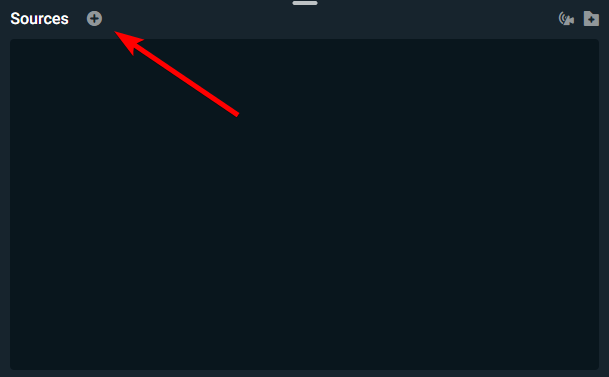
- In the Sources panel, select the plus (+) icon to add a new source.
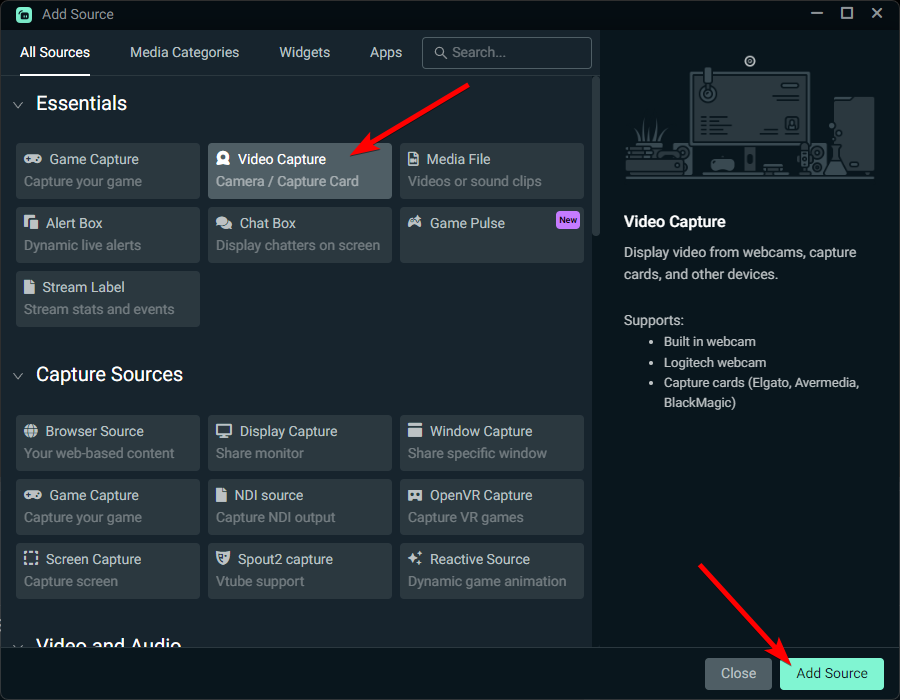
- Select Video Capture Device from the menu, and then select Add Source.
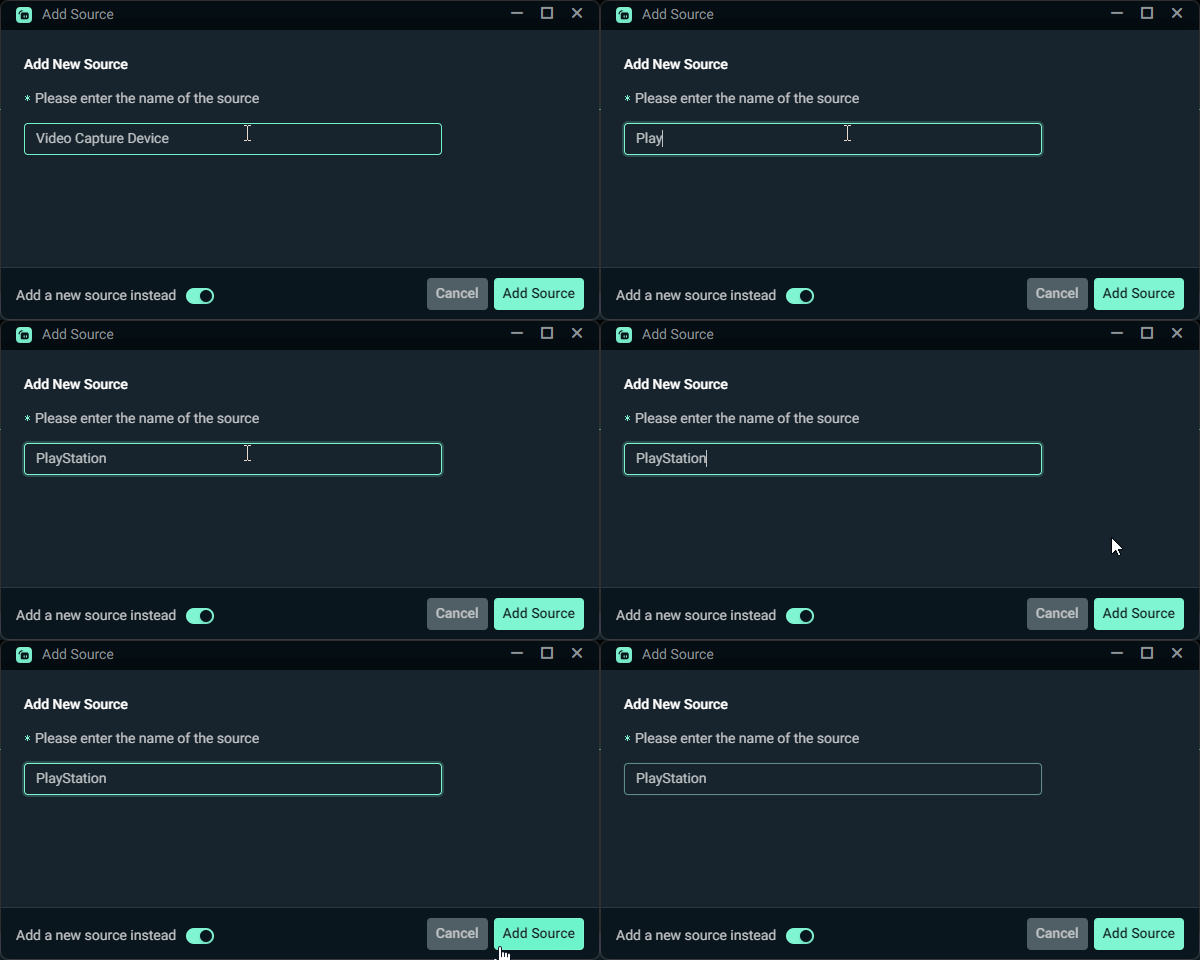
- Name your source (such as PlayStation) and select Add Source.
- Select the Device dropdown menu, select your capture card from the list, and select Close.
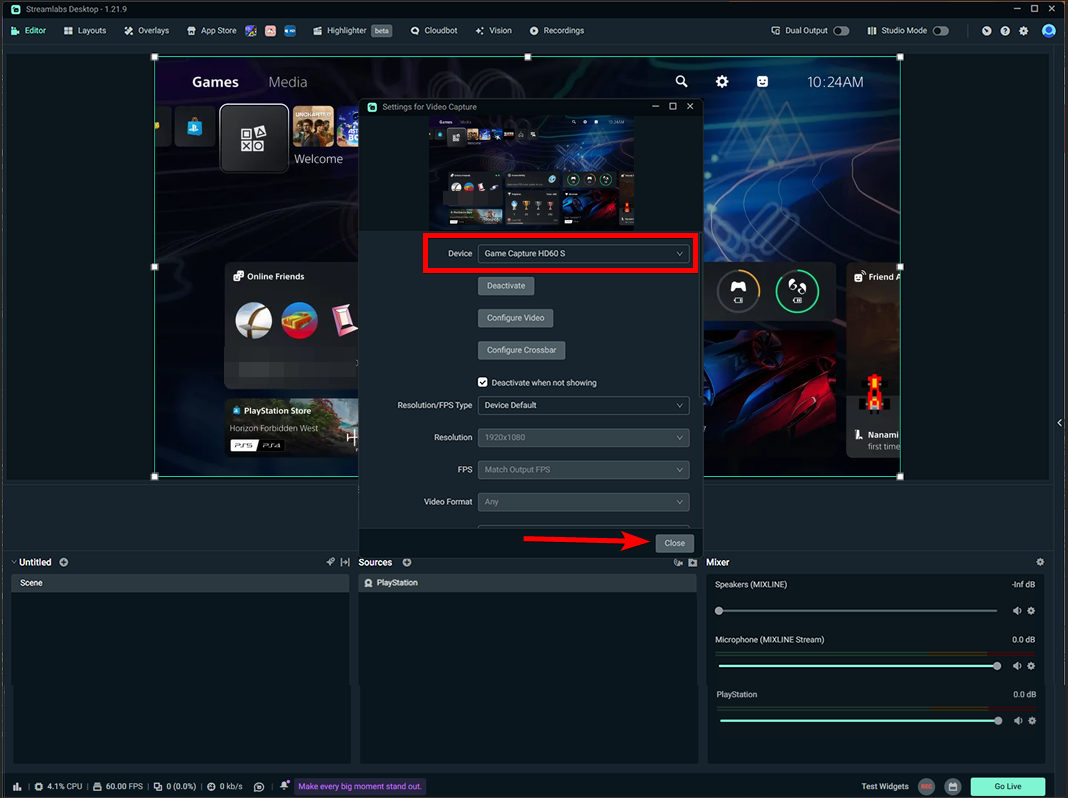
Your game screen should now appear in the main preview window.
Step 3: Configure your game audio
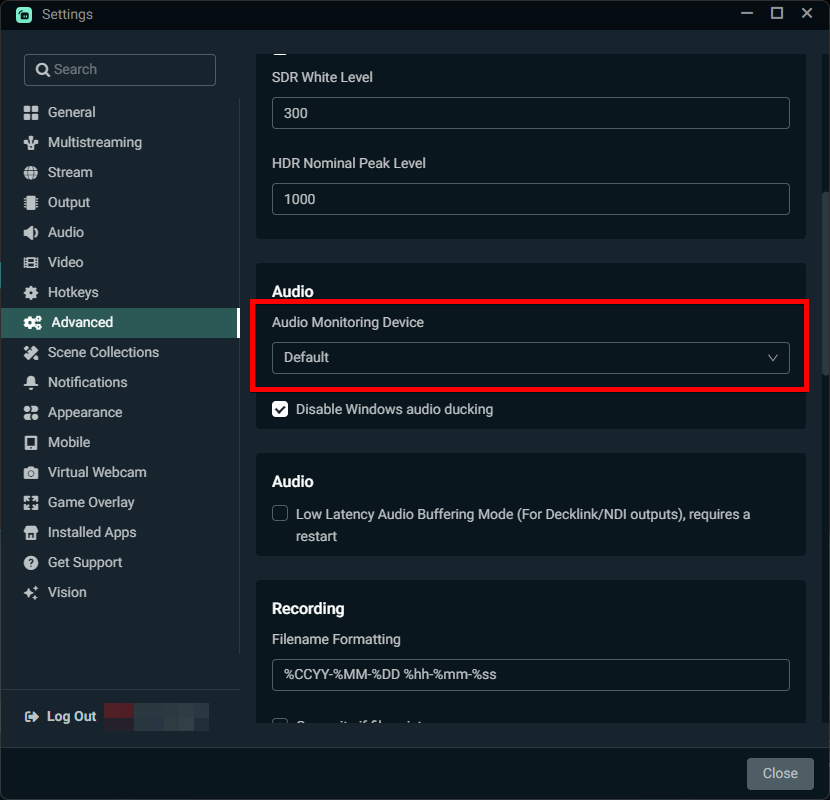
Before configuring your capture card audio, check where Streamlabs Desktop sends monitored sound:
- Go to Settings (⚙️) > Audio > Advanced, and check what your Audio Monitoring Device is.
- Go to the Audio tab and check what your Desktop Audio Device is set to.
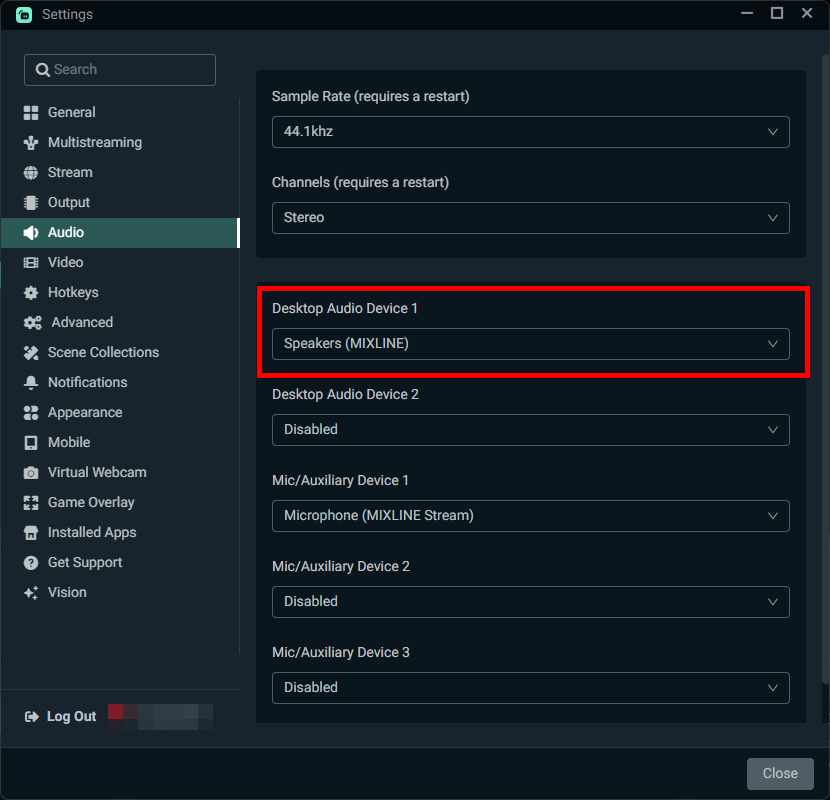
Once your monitoring device is verified, adjust your capture card audio settings:
- In Streamlabs Desktop, go to the Audio Mixer panel.
- Find your capture card audio bar and click the gear icon (⚙️) and select Properties
- Select the Audio Monitoring dropdown menu and choose what makes sense with your audio setup:
|
If your Audio Monitoring Device is… |
And your Desktop Audio Device is… |
Select this option |
Result |
|
Set to Default |
Enabled |
Monitor Only (mute output) |
Sends sound to your default audio device. Your Desktop Audio channel sends it to stream without echo. |
|
Has a Device Name |
Device Name Matches |
Monitor Only (mute output) |
Sends sound to your matching hardware device so Desktop Audio captures it without echo. |
|
Set to Default |
Disabled |
Monitor and Output |
Sends sound to your monitoring device and sends a direct audio feed to your stream. |
|
Has a Device Name |
Device Name Doesn’t Match |
Monitor and Output |
Sends sound to your monitoring device and sends a direct audio feed to your stream. |
4. Select Done
Step 4: Test your setup with a test recording
- Locate the bottom right controls in Streamlabs Desktop and select Record.
- Play your game for 10 to 15 seconds while speaking or letting game audio play.
- Select Record again to stop recording.
- Open your recording folder:
- Click Recordings at the top of Streamlabs Desktop
- Click on the Recording Path

- Play your recorded file and verify the following:
-
- Game Video: Your video preview plays smoothly without stuttering or black screens.
- Monitored Sound: Game audio is clear in your monitoring device without distortion.
- Stream Output: Game audio plays at a comfortable volume without duplicate audio or echo.
Streaming and recording PlayStation gameplay without a capture card
If you have a computer but don't own a capture card, PS Remote Play offers another way to access your gameplay on a Windows PC or Mac.
With the PS Remote Play app, you can connect to your PS4 or PS5 and view your gameplay on your computer. From there, you can try capturing the Remote Play window using Streamlabs Desktop to stream or record your gameplay.
To get started:
- Enable Remote Play on your PlayStation through your console's settings.
- Download and install PS Remote Play on your PC or Mac.
- Sign in with the same PlayStation account used on your console and connect to your PS4 or PS5.
- Open Streamlabs Desktop and add your Remote Play window as a screen or window capture source.
- Select Go Live or Record in Streamlabs Desktop to begin streaming or recording.
Note: Remote Play requires a compatible computer and a stable internet connection. PlayStation recommends at least 15 Mbps for a better Remote Play experience. Capturing gameplay this way may introduce latency or affect video quality, so a capture card is generally preferable for a more reliable setup.
How to stream and record gameplay directly on PlayStation
Both PS4 and PS5 have built-in streaming and recording features that allow you to share gameplay without additional software or equipment. You can broadcast directly to Twitch or YouTube, save gameplay clips, and include microphone audio or compatible camera footage.
While native broadcasting is a great option for beginners, customization is limited compared to dedicated streaming software like the Streamlabs Desktop setup outlined above.
How to stream PlayStation gameplay directly to Twitch or YouTube
What you'll need:
- PS4 or PS5 console
- Twitch or YouTube account
- Stable internet connection
- Compatible microphone or headset (optional)
- Compatible PlayStation camera (optional)
The steps for starting a broadcast differ slightly between PS4 and PS5.
On PS4:
- Launch the game you want to stream.
- Press the SHARE button on your controller and select Broadcast Gameplay.
- Choose Twitch or YouTube as your streaming destination.
- Sign in and link your account if you haven't already.
- Customize your broadcast settings, including your stream title, microphone, and camera.
- Select Start Broadcasting to go live.
On PS5:
- Launch the game you want to stream.
- Press the Create button on your controller and select Broadcast.
- Choose Twitch or YouTube and link your account if prompted.
- Enter your broadcast information and select Broadcast Options to adjust your camera and audio settings.
- Select Go Live to start streaming.
Note: Native PlayStation broadcasting supports Twitch and YouTube, but you can only stream to one platform at a time. If you want to multistream or add custom overlays, alerts, and widgets, you'll need an alternative setup such as Streamlabs Desktop with a capture card.
How to record PlayStation gameplay
Want to save your favorite gameplay moments without going live? Both PS4 and PS5 allow you to capture recent gameplay or start a new recording directly from your controller.
On PS4:
- Launch the game you want to record.
- Press the SHARE button and select Save Video Clip to capture recent gameplay.
- To start a new recording, press the SHARE button twice. Press it twice again to stop recording.
- Access your saved clips in the Capture Gallery.
On PS5:
- Launch the game you want to record.
- Press the Create button to open the Create menu.
- Select Save Recent Gameplay to capture a previous moment, or Start New Recording to begin recording.
- If recording manually, return to the Create menu and select Stop Recording when finished.
- Find your saved clips in the Media Gallery.
Pro-Tip: Recording limits vary by console and capture settings. PS5 allows you to save up to 60 minutes of recent gameplay, while PS4 automatically captures your most recent 15 minutes by default. You can adjust capture settings to suit your needs.
Frequently asked questions
Do you need a capture card to stream PlayStation gameplay?
No. Both PS4 and PS5 support native streaming to Twitch and YouTube without a capture card. However, if you want to use PC streaming software like Streamlabs Desktop for more advanced streaming or recording, a capture card is generally the most reliable option.
Can you multistream from PlayStation?
Not directly through PlayStation's built-in broadcasting feature. However, you can connect your PS4 or PS5 to a computer using a capture card and use Streamlabs Desktop to broadcast to multiple supported platforms simultaneously.
Can you use Streamlabs Console with PlayStation?
No. Streamlabs Console currently only supports XBOX. If you want to customize your PlayStation or other console streams with Streamlabs features like overlays, alerts, and widgets, you can use Streamlabs Desktop with a capture card.
Can you record PlayStation gameplay without a PC?
Yes. Both PS4 and PS5 feature built-in gameplay recording tools that allow you to capture and save clips directly on your console without additional equipment, but recording time is limited.
Whether you're streaming directly from your PlayStation or using Streamlabs Desktop for more advanced streaming and recording, there's a setup that can fit your needs. Choose the method that works best for your equipment and goals, and start sharing your gameplay with your community.
If you have any questions or comments, please let us know by contacting us.
0 Comments