

TL;DR: Whether you want to stream XBOX gameplay directly to Twitch, customize your broadcast with Streamlabs Console, or record gameplay using a PC and capture card, there are several ways to get started. This guide covers your options, including the equipment and software you'll need.
Jump Ahead:
- How to stream and record XBOX Gameplay with a PC
- How to stream XBOX gameplay without a PC via Streamlabs Console
- How to stream and record gameplay directly on XBOX
Below, we'll walk you through the different ways to stream and record XBOX gameplay whether you're playing on XBOX One or XBOX Series X|S, including how to use Streamlabs Console and Streamlabs Desktop.
How to stream and record XBOX gameplay with a PC
If you want more control over your streams and recordings, including advanced customization, multiple audio sources, and additional recording options, you can connect your XBOX to a computer and use software like Streamlabs Desktop.
There are two main approaches: using a capture card or capturing your XBOX gameplay through XBOX Remote Play.
Streaming and recording XBOX gameplay with a capture card
A capture card allows you to connect your XBOX to a computer and bring your gameplay into Streamlabs Desktop or OBS, where you can add overlays, alerts, webcams, and other elements to your streams and recordings.This method is ideal for creators who want greater control over their stream, particularly when using multiple cameras, audio sources, or more advanced setups.
This guide will help you connect your capture card hardware and set up your software so you can start streaming in minutes.
Equipment you need before starting
Before you begin, gather the following hardware:
- XBOX console and TV or monitor: Standard XBOX One and XBOX Series X|S models work.
- Capture card: A USB or PCIe capture card. Read our guide on What is a Capture Card? (And the Best Ones for Streaming) if you need help choosing one.
- Cables: The HDMI cord that came with your XBOX and any cables that came with your capture card.
- Streaming computer: A Windows PC or Mac running Streamlabs Desktop.
Step 1: Connect your XBOX and capture card
- Only if you have a PCIe capture card: Turn off your computer, unplug the power cable, open your computer case, and install the capture card into an open PCIe slot on your motherboard. (If you are using an external USB capture card, skip to step 2.)
- Plug one end of an HDMI cable into the HDMI OUT port on the back of your XBOX console.
- Plug the other end of that HDMI cable into the HDMI IN port on your capture card (or PCIe card bracket on the back of your PC).
- Plug one end of a second HDMI cable into the HDMI OUT (Passthrough) port on your capture card.
- Plug the other end of that second HDMI cable into an HDMI IN port on your TV or gaming monitor.
- Only if you have a USB capture card: Plug the USB cable directly into a USB 3.0 port on your computer.
Step 2: Add your capture card to Streamlabs Desktop
- Open Streamlabs Desktop on your computer.
- Select your main gameplay scene in the Scenes panel in the bottom left corner.
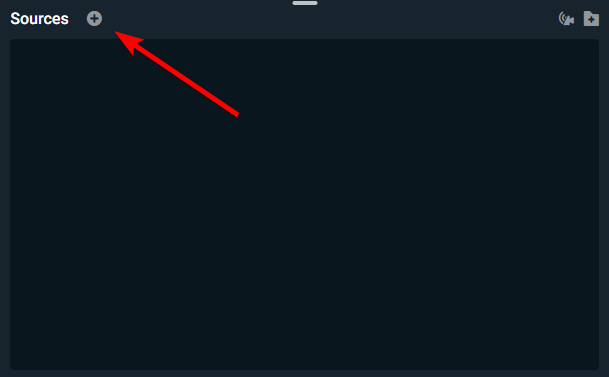
- In the Sources panel, select the plus (+) icon to add a new source.
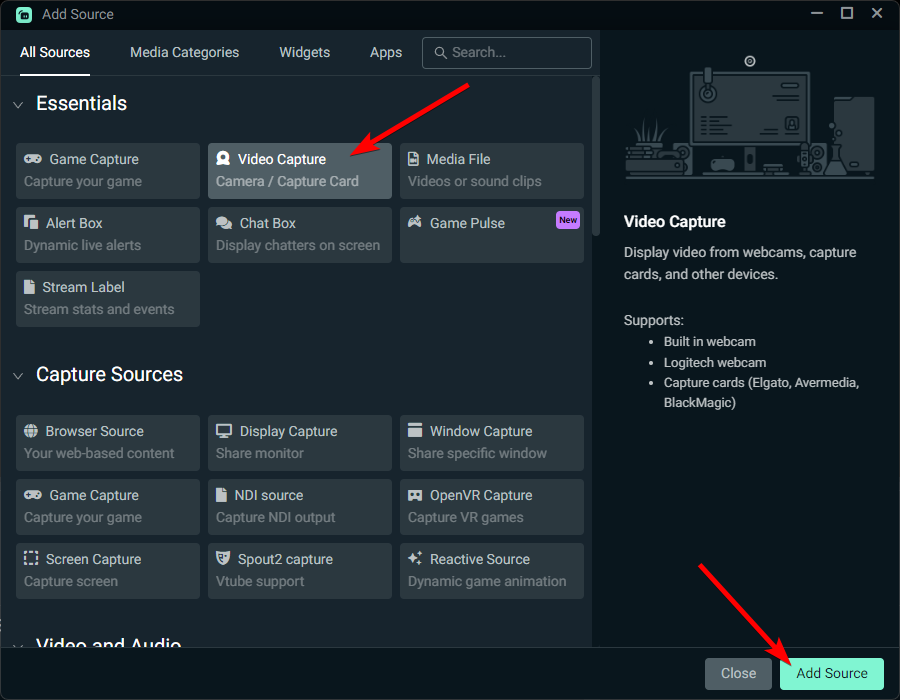
- Select Video Capture Device from the menu, and then select Add Source.
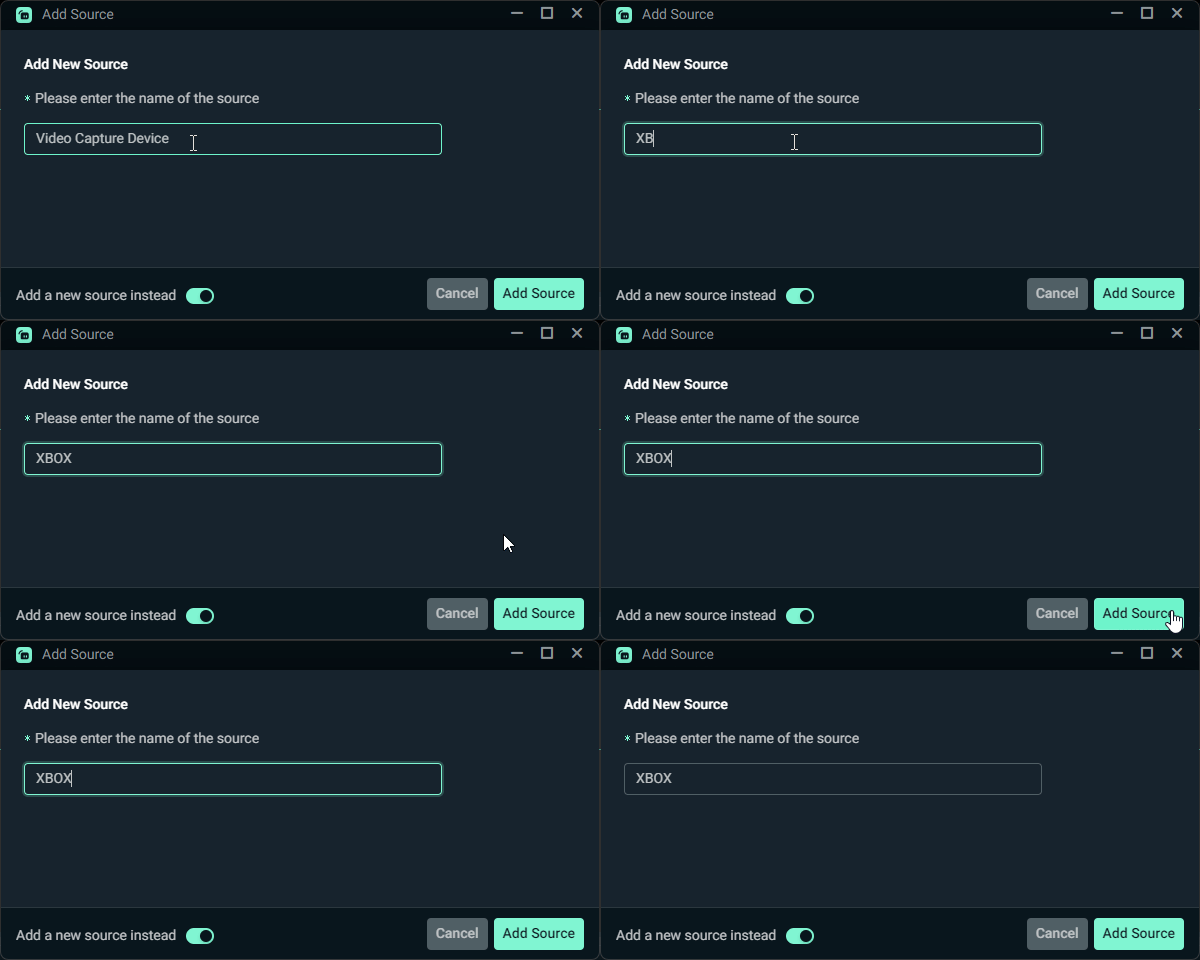
- Name your source (such as XBOX) and select Add Source.
- Select the Device dropdown menu, select your capture card from the list, and select Close.
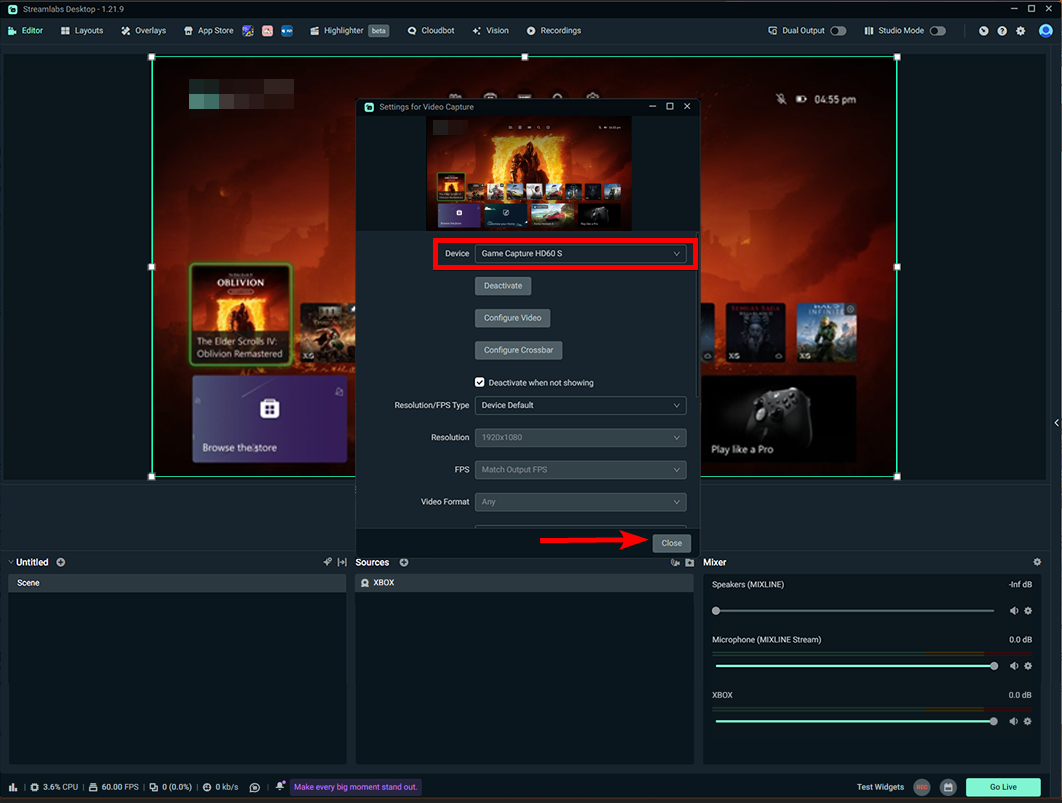
Your game screen should now appear in the main preview window.
Step 3: Configure your game audio
Before configuring your capture card audio, check where Streamlabs Desktop sends monitored sound:
- Go to Settings (⚙️) > Audio > Advanced, and check what your Audio Monitoring Device is.
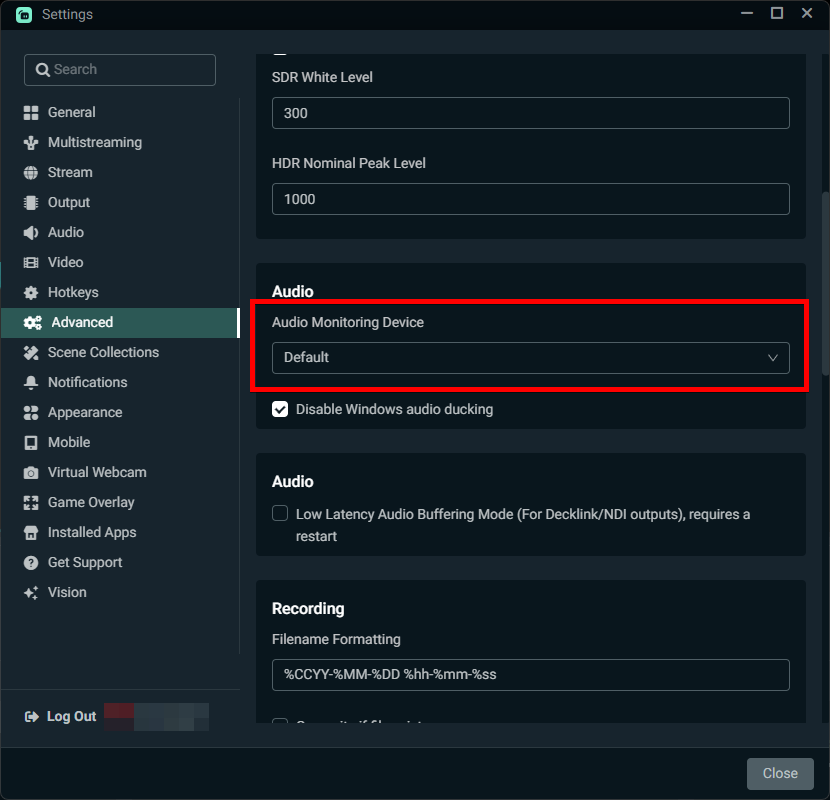
- Go to the Audio tab and check what your Desktop Audio Device is set to.
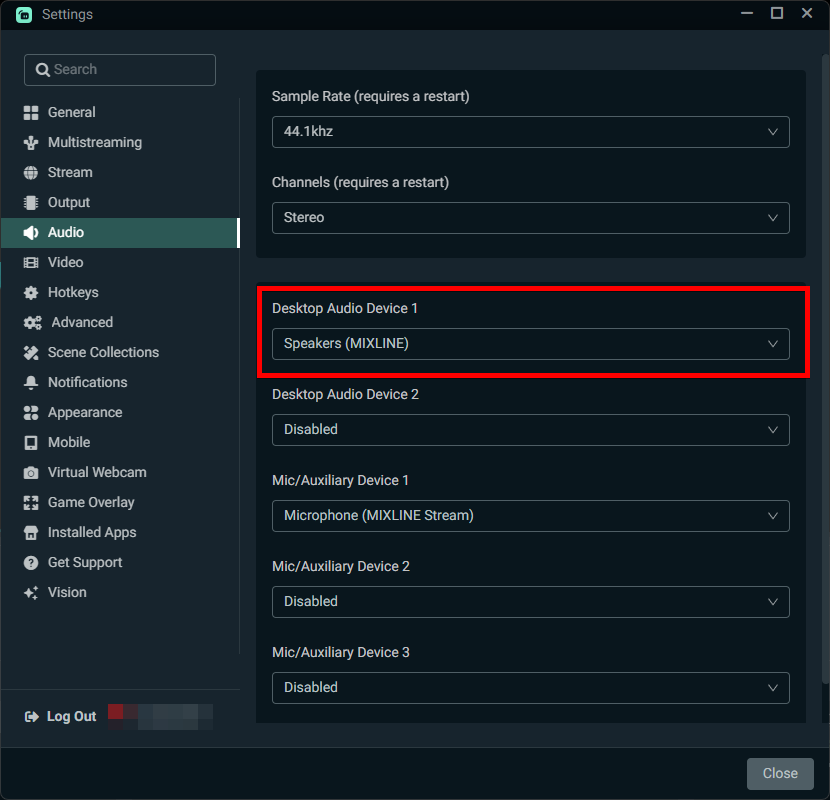
Once your monitoring device is verified, adjust your capture card audio settings:
- In Streamlabs Desktop, go to the Audio Mixer panel.
- Find your capture card audio bar and click the gear icon (⚙️) and select Properties
- Select the Audio Monitoring dropdown menu and choose what makes sense with your audio setup:
|
If your Audio Monitoring Device is… |
And your Desktop Audio Device is… |
Select this option |
Result |
|
Set to Default |
Enabled |
Monitor Only (mute output) |
Sends sound to your default audio device. Your Desktop Audio channel sends it to stream without echo. |
|
Has a Device Name |
Device Name Matches |
Monitor Only (mute output) |
Sends sound to your matching hardware device so Desktop Audio captures it without echo. |
|
Set to Default |
Disabled |
Monitor and Output |
Sends sound to your monitoring device and sends a direct audio feed to your stream. |
|
Has a Device Name |
Device Name Doesn’t Match |
Monitor and Output |
Sends sound to your monitoring device and sends a direct audio feed to your stream. |
- Select Done
Step 4: Test your setup with a test recording
- Locate the bottom right controls in Streamlabs Desktop and select Record.
- Play your game for 10 to 15 seconds while speaking or letting game audio play.
- Select Record again to stop recording.
- Open your recording folder:
- Click Recordings at the top of Streamlabs Desktop
- Click on the Recording Path

- Play your recorded file and verify the following:
-
- Game Video: Your video preview plays smoothly without stuttering or black screens.
- Monitored Sound: Game audio is clear in your monitoring device without distortion.
- Stream Output: Game audio plays at a comfortable volume without duplicate audio or echo.
Streaming and recording XBOX gameplay on PC without a capture card
If you have a Windows PC but don't own a capture card, XBOX Remote Play offers another way to access your gameplay on your computer.
Using XBOX Remote Play, you can view games running on your XBOX through a supported web browser. From there, you can capture the gameplay window using Streamlabs Desktop to stream or record your session.
To use this method, enable remote features on your XBOX and visit xbox.com/remoteplay on your computer. Once connected, open Streamlabs Desktop and add a window or screen capture source to bring your gameplay into your scene.
You can then use Streamlabs Desktop's Go Live or Record features (or both simultaneously), depending on your goal.
Note: Keep in mind that Remote Play depends on your network connection, and capturing gameplay this way can introduce additional latency or affect video quality. For a more consistent streaming or recording setup, a dedicated capture card may be preferable.
How to stream XBOX gameplay with Streamlabs Console
If you don't have a capture card or a computer powerful enough to handle streaming, Streamlabs Console is a great solution.
Streamlabs Console is a browser-based broadcasting tool for XBOX that lets you customize your live stream with overlays, alerts, widgets, and more without needing a PC or capture card. You can set up and manage your stream from your phone, tablet, or web browser, making it especially convenient for creators who prefer gaming from the comfort of their couch.
In addition to customizing your stream, Streamlabs Console supports multistreaming* to Twitch, YouTube, Kick, and TikTok, allowing you to reach audiences across multiple platforms at once. You can also use Dual Output to create horizontal and vertical layouts for supported destinations.
*Note: Twitch must be one of your streaming destinations when multistreaming through Streamlabs Console. YouTube, Kick, and TikTok cannot be used as standalone destinations.
How to go live with Streamlabs Console
Streamlabs Console offers a seven-day free trial and is also included with Streamlabs Ultra, making it easy to explore its features before committing to a subscription.
What you'll need:
- XBOX One or XBOX Series X|S console
- Twitch account
- Streamlabs Console subscription or free trial
- phone, tablet, or computer with a supported web browser
- stable internet connection
- compatible headset and webcam (optional)
- Create an account or sign into Streamlabs Console from your phone, tablet, or web browser.
- Connect your Twitch account and any additional supported platforms you'd like to multistream to.
- Customize your stream by setting up scenes, overlays, alerts, and other widgets.
- On your XBOX, launch your game and navigate to Capture & Share → Live streaming.
- Connect your Twitch account if prompted. Under More options, select Streamlabs as your destination.
- Select Go live now to start your broadcast.
- Use Streamlabs Console on your phone, tablet, or laptop to manage scenes and other stream elements while you're live.
For more detailed instructions, check out our guide on how to get started using Streamlabs Console.
How to stream and record gameplay directly on XBOX
If you don't have a PC or simply prefer sharing gameplay straight from your XBOX, you can use your console's built-in streaming ( to Twitch only) and recording features.
Note: Twitch is currently the only supported platform for broadcasting directly through XBOX's native live streaming interface. If you want to stream to additional platforms or customize your broadcast with overlays and alerts, consider Streamlabs Console which allows you to expand your reach to YouTube, TikTok and Kick. .
How to stream XBOX gameplay directly to Twitch
Below are the steps for streaming your XBOX gameplay directly to Twitch.
- Turn on your XBOX and launch the game you want to stream.
- Press the XBOX button on your controller to open the guide.
- Navigate to Capture & Share, then select Live streaming.
- Follow the prompts to link your Twitch account if you haven't already.
- Select More options to adjust your stream settings, including your microphone, camera and adding a title for your stream.
- Choose Twitch as your destination, then select Go live now to start streaming.
You can pause or stop your broadcast directly from the XBOX live streaming menu.
How to record XBOX gameplay directly on XBOX
Want to save your best gameplay moments without going live? XBOX has built-in recording features that allow you to capture gameplay directly from your console.
- Launch the game you want to record.
- Press the XBOX button on your controller to open the guide.
- Navigate to Capture & Share.
- Select Record what happened to save a clip of recent gameplay. Your XBOX allows you to grab 15-seconds, 30-seconds or 1-minute of your most recent gameplay depending on your settings.
- If you want to record more gameplay you can head to Capture & Share → Start recording to begin a new recording. Return to the capture menu and stop the recording when you're finished.
You can find your saved clips in your XBOX captures library.
Pro-Tip: Recording length and video quality depend on your console model, capture settings, and available storage. If you're planning to record longer gaming sessions, consider using a compatible external storage device.
Frequently asked questions
Do you need a capture card to stream XBOX gameplay?
No. You can stream directly from your XBOX to Twitch using its built-in broadcasting feature or use Streamlabs Console to customize your stream and broadcast to additional supported platforms without a capture card. If you want to use Streamlabs Desktop with your XBOX, a capture card is generally the most reliable option.
Can you stream XBOX gameplay to YouTube?
Yes. Although XBOX doesn't offer native direct broadcasting to YouTube through its built-in live streaming interface, you can use Streamlabs Console to multistream to YouTube alongside Twitch. You can also stream to YouTube using Streamlabs Desktop and a capture card.
Can you stream XBOX gameplay to multiple platforms at once?
Yes. Streamlabs Console supports multistreaming from XBOX to Twitch, YouTube, Kick, and TikTok without a capture card or PC. Keep in mind that Twitch is required as one of your streaming destinations.
Alternatively, Streamlabs Desktop offers multistreaming capabilities for creators broadcasting through a computer.
Can you record XBOX gameplay without a PC?
Yes. XBOX One and XBOX Series X|S consoles include built-in gameplay capture features, allowing you to save clips without additional software or equipment.
Is Streamlabs Console free?
Streamlabs Console offers a seven-day free trial before committing to paid subscription. It is also available as part of Streamlabs Ultra. Visit the Streamlabs Console page for current pricing.
Whether you're streaming directly from XBOX, customizing your broadcasts with Streamlabs Console, or using Streamlabs Desktop for more advanced streaming and recording, there's a setup for every type of creator. Choose the method that works best for your equipment, streaming goals, and preferred platforms, and start sharing your gameplay with your community.
If you have any questions or comments, please let us know by contacting us.
0 Comments