

Automations are the perfect way to make your live stream more engaging while you focus on your gaming. And now, Automations are directly in your Streamlabs Desktop editor, making it easier to create hands-free actions that respond to what’s happening in your game.
Previously available through the Sidekick app (formerly Intelligent Streaming Agent) Automations can now be accessed directly from the Scenes panel in Streamlabs Desktop. That means you can set up and manage automations without installing Sidekick or another Streamlabs app.
Note: If you already use Automations, there’s nothing you need to rebuild or setup. Your existing Automations will migrate to their new home in Streamlabs Desktop. All users can enable up to 5 automations at once while Streamlabs Ultra subscribers get to 10.
What are Automations?
Automations allow gameplay events to trigger actions in Streamlabs Desktop automatically. This lets parts of your stream react to your gameplay without requiring you to manually control everything while you play.
For example, you can set an Automation to:
- Switch scenes after a victory
- Show or hide a source when player health gets low
- Save a replay after a big moment
- Trigger multiple actions from the same gameplay event
TLDR–lock in on your game while automations handle the rest!
How to Set Up Automations in Streamlabs Desktop
Step 1: Make sure you're running the latest version of Streamlabs Desktop.
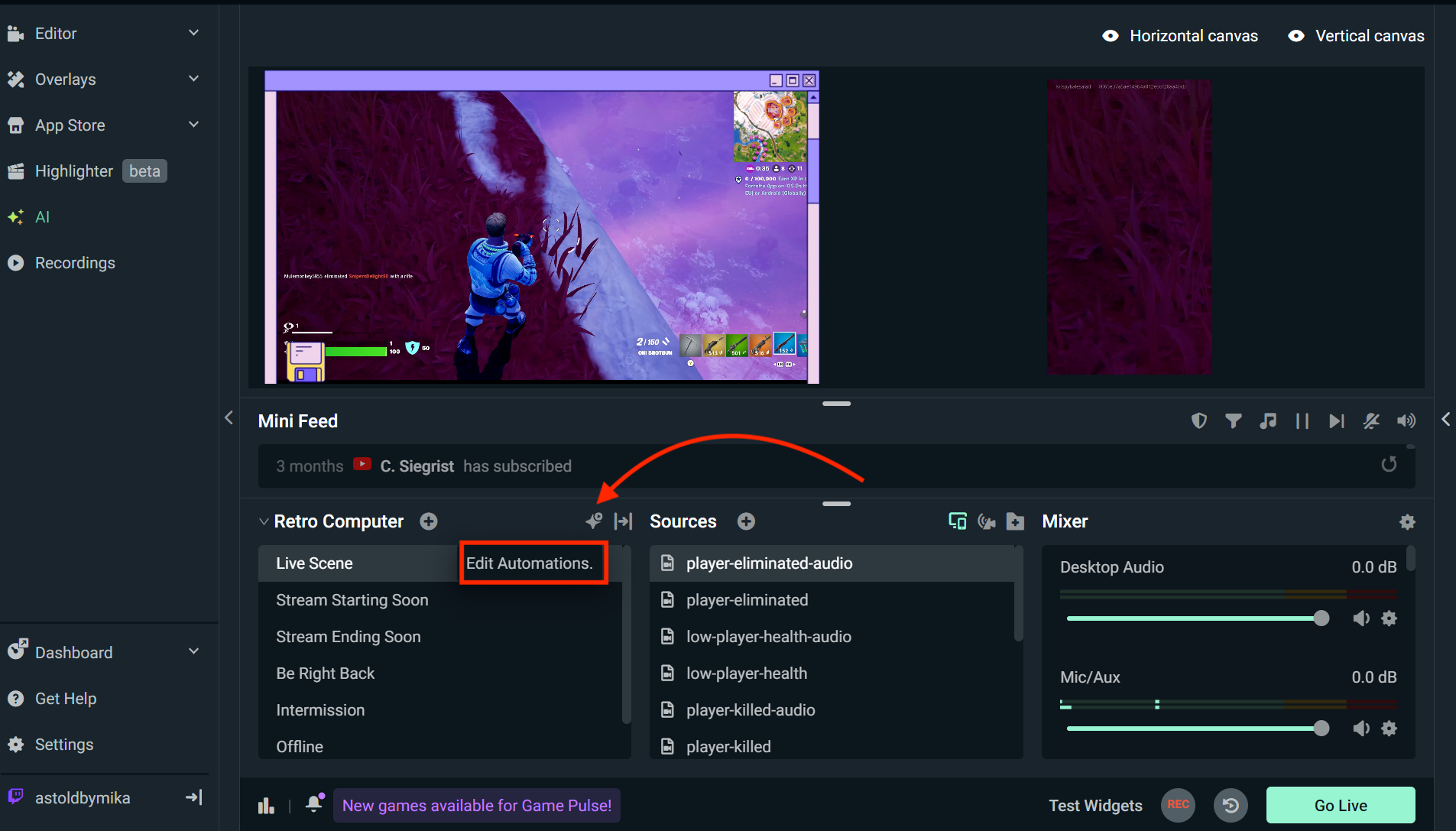
Step 2: In the Sources panel, click the Automations Icon to open the Automations settings window.
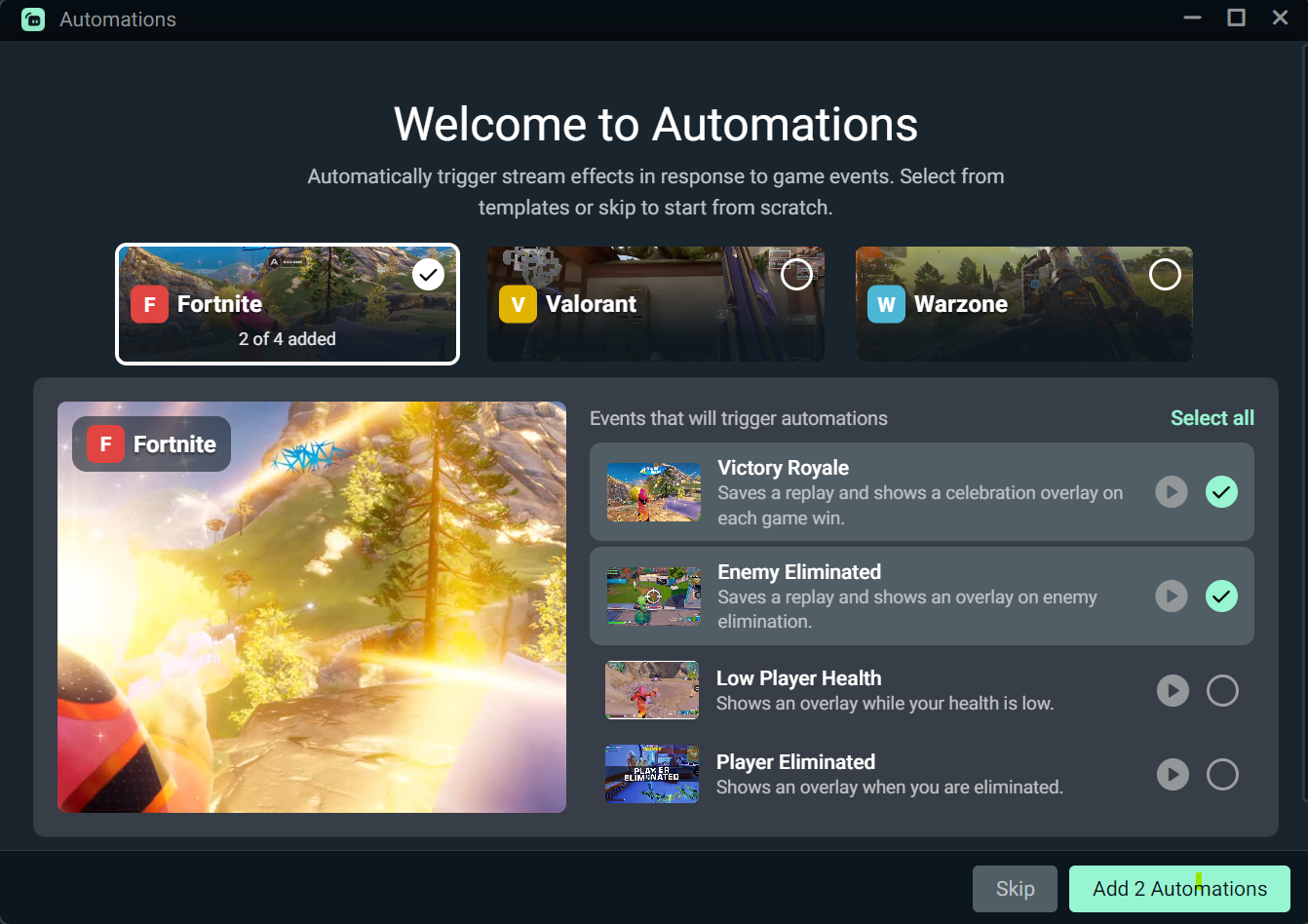
Step 3: In the Automations settings window, you’ll see options for templates that you can choose from (for quick 1-click setup) for selected games.
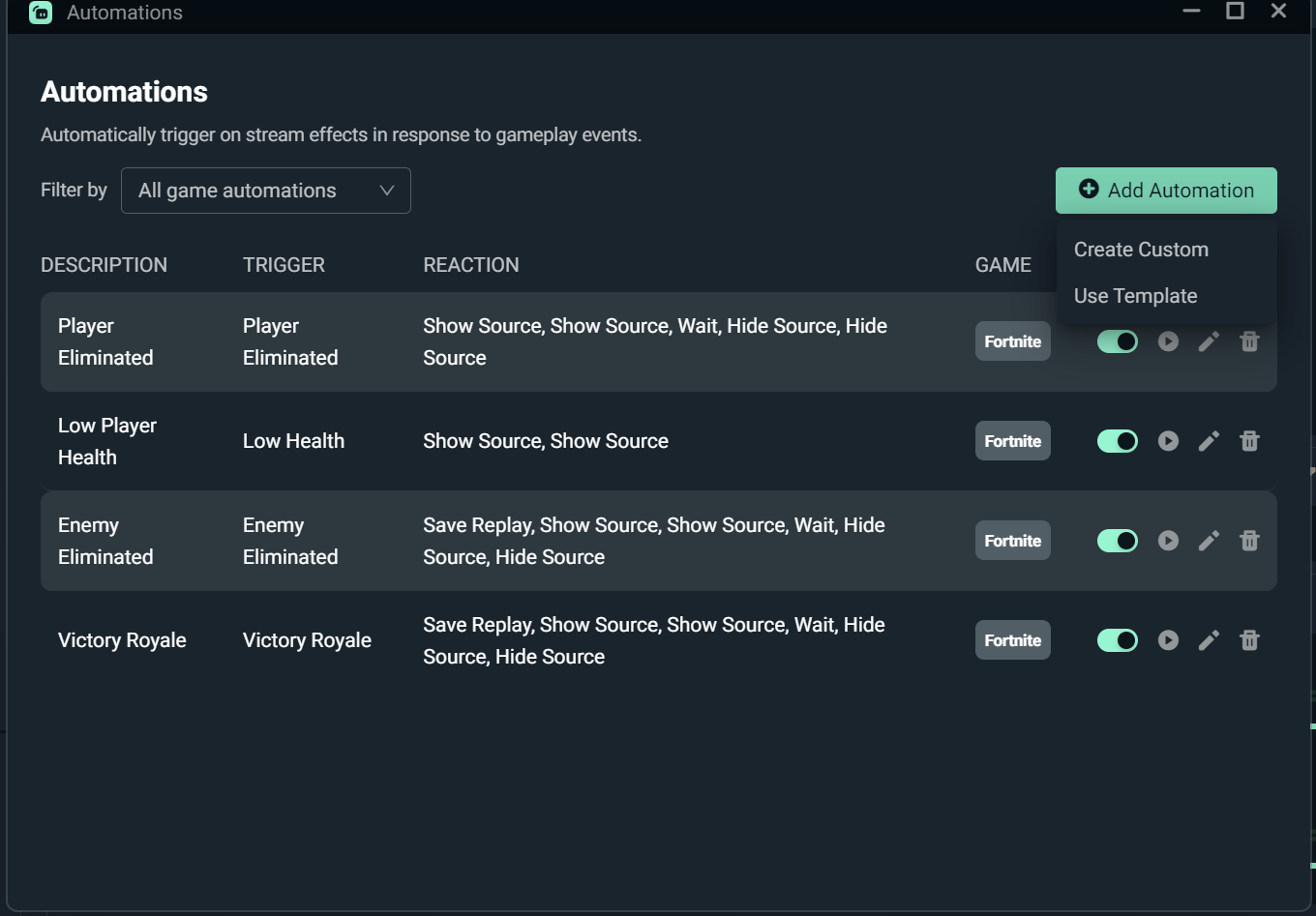
When creating an Automation from scratch, click Add Automation > Create custom, you’ll be able to:
- Describe your automation so you can identify it in the list. Example: Victory Royale reaction
- Add a trigger based on supported games and conditions
- Select the action or actions that happen when the trigger occurs
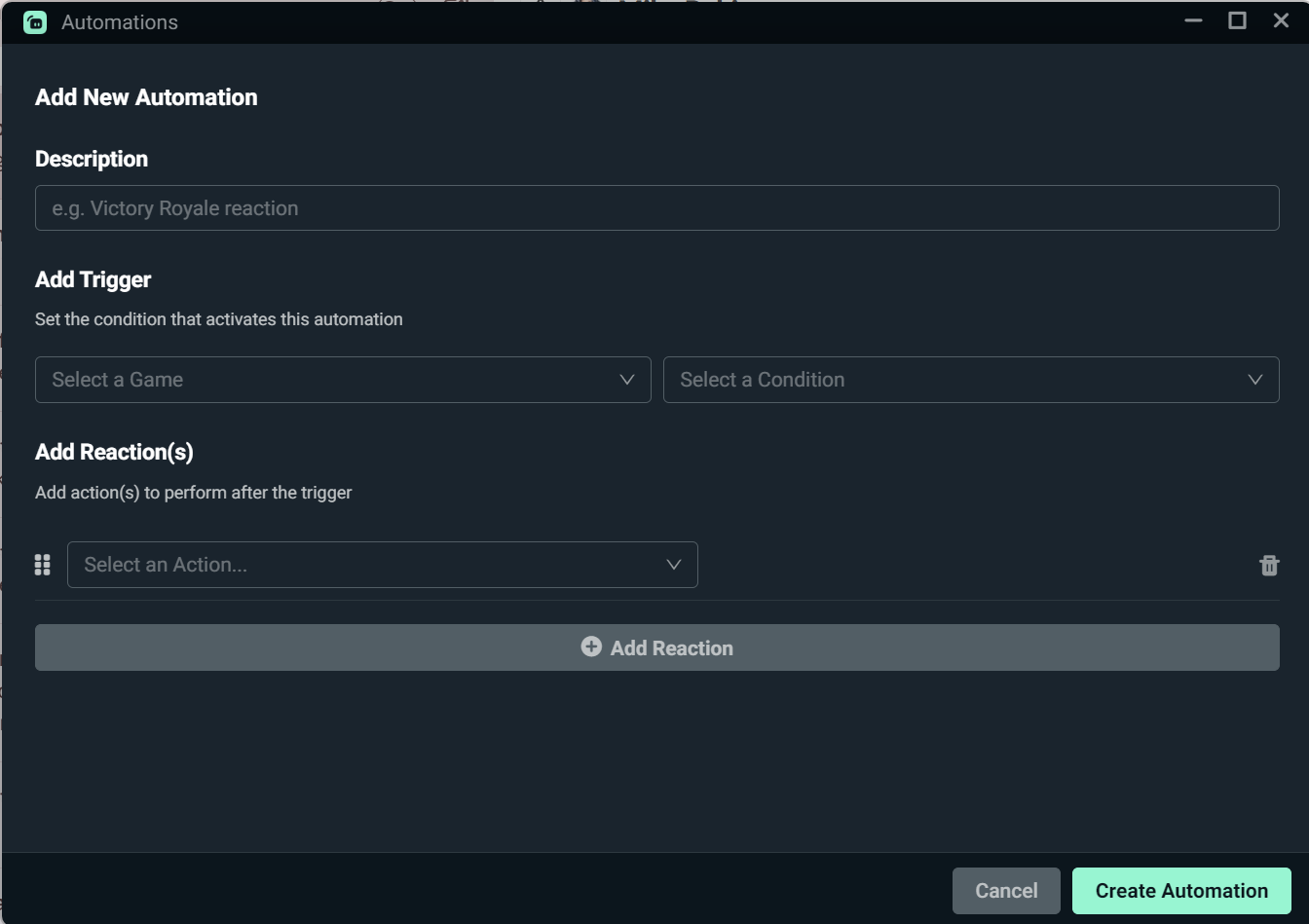
Step 4: Save your Automation by selecting Create Automation and make sure it is enabled before going live.
You can also test, delete or edit automation from the Automations settings window.
Note: When testing automations, the selected Sidekick voice may not play however the preferred voice should play on stream.
Sidekick (formally Intelligent Streaming Agent) remains a separate app within Streamlabs Desktop with its own set of streaming features including the ability to set up a 2D avatar on stream.
Whether you want your stream to automatically switch scenes after a win, capture an instant replay, or react to a gameplay event, you can set everything up right from the editor.
Update to the latest version of Streamlabs Desktop to check out the new home for Automations.
If you have any questions or comments, please let us know by contacting us or joining our Discord server.
0 Comments