

Review Feedback
But first, how do you know if there's new feedback?
There are two ways for you to receive notifications of any new activity in your project.
In-App notifications
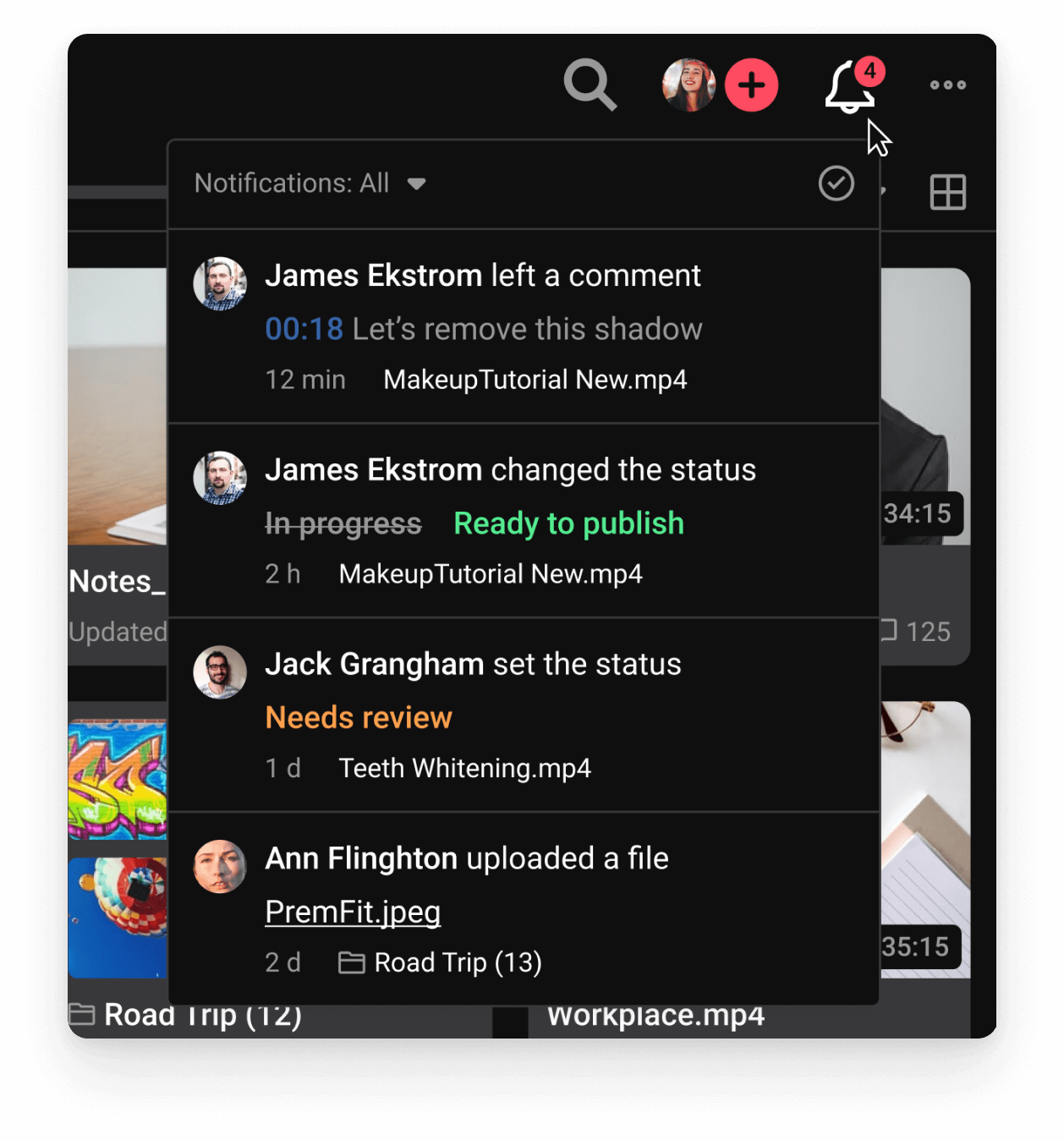
You will receive in-app notifications when new actions such as
- Comments made
- Media uploaded
- Project collaborators added
- Media status updated
take place in your account and all projects you're added to. New notifications will display at the top right of your dashboard with the quantity of unread notifications in red. Once read, the notifications badge will clear.
Email notifications
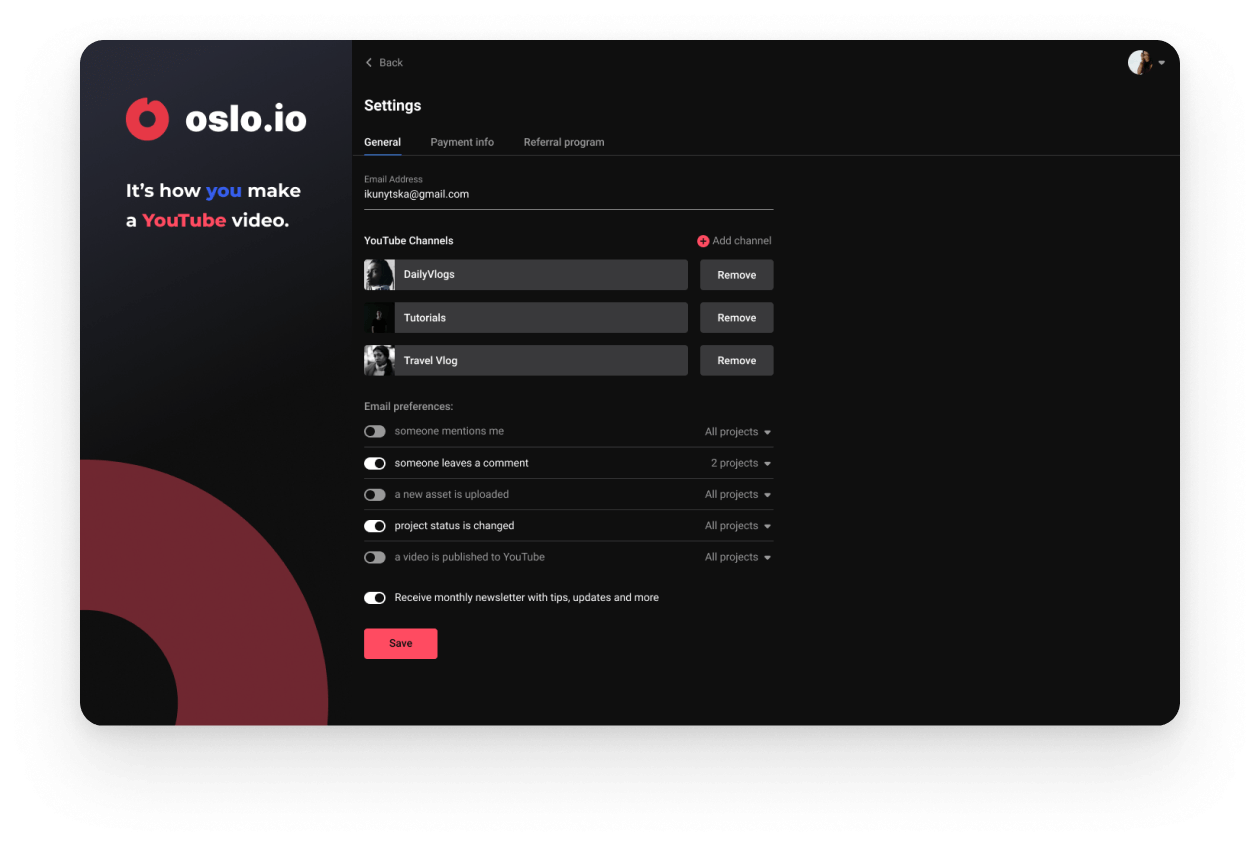
Depending on your project settings, you will receive individual email notifications of new activity. Adjust your preferences at any time per project through the Notifications Settings.
Note: You will not receive notifications for changes you made yourself. In-app or email.
Viewing comments
To view comments made on your media, go back to the media view page or open the review link.
If there has been comments made on it, you can view them in the Comments box next to the player. If the comments are time-stamped, you will see avatars from each reviewer in the video timeline.
Hover over each avatar to see the comments. Click on them to see the specific frame each time-stamped comment is referring to. If the selected comment is range-based, the video will stop playing at the end of the range.

Reviewing comments
There are several actions you can take while reviewing feedback such as:
- Replying to specific comments in threaded conversations
- Liking comments
- Resolving comments once feedback has been addressed
- Hiding resolved comments to keep track of outstanding feedback
.gif)
0 Comments