

This article will show you how to disconnect your platform account (example: Twitch) from Streamlabs. Your Streamlabs account is connected to your platform. If you forget your password, you will have to reset your password through the platform.
If you want to cancel a subscription (Pro or Ultra), or delete your account, please submit a ticket HERE.
Click below to jump to your particular platform you are looking to disconnect:
To Disconnect Your Twitch Account:
- Log out of Streamlabs.com and Streamlabs Desktop
- Log into your Twitch account and go to https://www.twitch.tv/settings/connections
- Under "Other connections" you will find Streamlabs Dashboard and click "Disconnect"
- Voilà, you are done!
To Disconnect YouTube Account
- Log out of Streamlabs.com and Streamlabs Desktop
- Log into your YouTube account and go to https://myaccount.google.com/permissions
- Find the section that says Streamlabs and click "Remove"
- Congrats! You are done!
To Disconnect Facebook/Meta Account
- Log out of Streamlabs.com and Streamlabs Desktop
- Go to your Facebook settings here: https://www.facebook.com/settings?tab=business_tools
- Click "View and Edit" on the Streamlabs connection
- Scroll to the bottom and click "Remove"
To Disconnect TikTok Account
- Log out of Streamlabs.com and Streamlabs Desktop
- Ensure that you are on the account that is connected with Streamlabs
- Go to Profile and then click the three lines at the top right
- Go to Settings and Privacy > Security and login> Manage apps > Manage app permissions > Streamlabs Web
- Click "Remove Access"
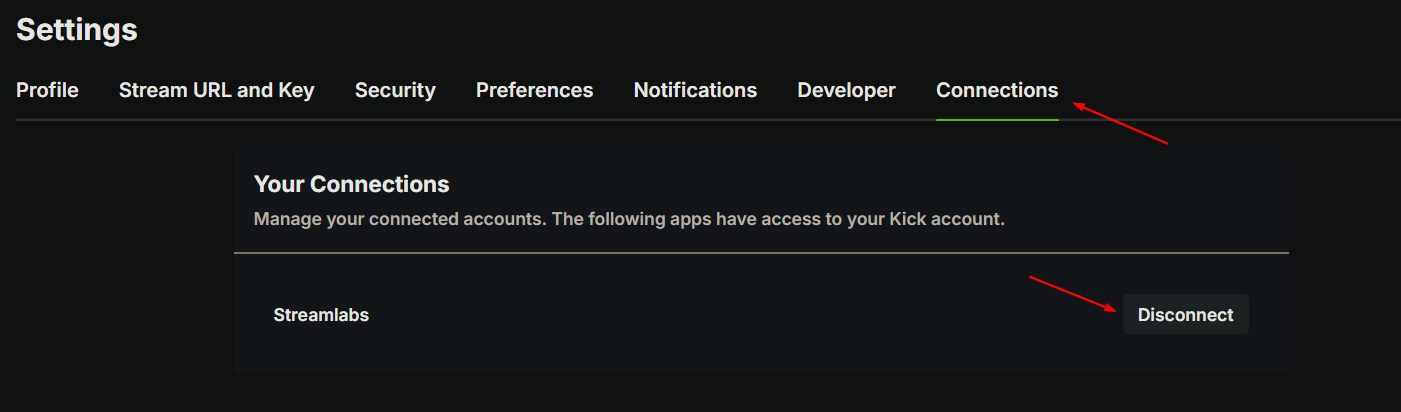
To Disconnect Kick Account
- Log out of Streamlabs.com and Streamlabs Desktop
- Log into your Kick account and go to https://kick.com/settings/connections
- Find Streamlabs and click "Disconnect"
- Voilà, you are done!
To Disconnect You X(Twitter) Account
- Log out of Streamlabs.com and Streamlabs Desktop
- Log into your X (Twitter) account and click More > Settings and Privacy
- Click Security and Account Access > Apps and Sessions > Connected Apps > Streamlabs
- Click Revoke App permissions
- Once you have done this, please log in to streamlabs.com or Streamlabs Desktop with your X(Twitter) account.
If you have any other questions or concerns, feel free to send us a ticket.
0 Comments